> For the complete documentation index, see [llms.txt](https://docs.arcware.cloud/llms.txt). Markdown versions of documentation pages are available by appending `.md` to page URLs; this page is available as [Markdown](https://docs.arcware.cloud/arcware-cloud-platform/getting-started-with-arcware-cloud/sharing-your-project/white-labeling-guide.md).
# White Labeling Guide
Sharing your project
## Feature Overview
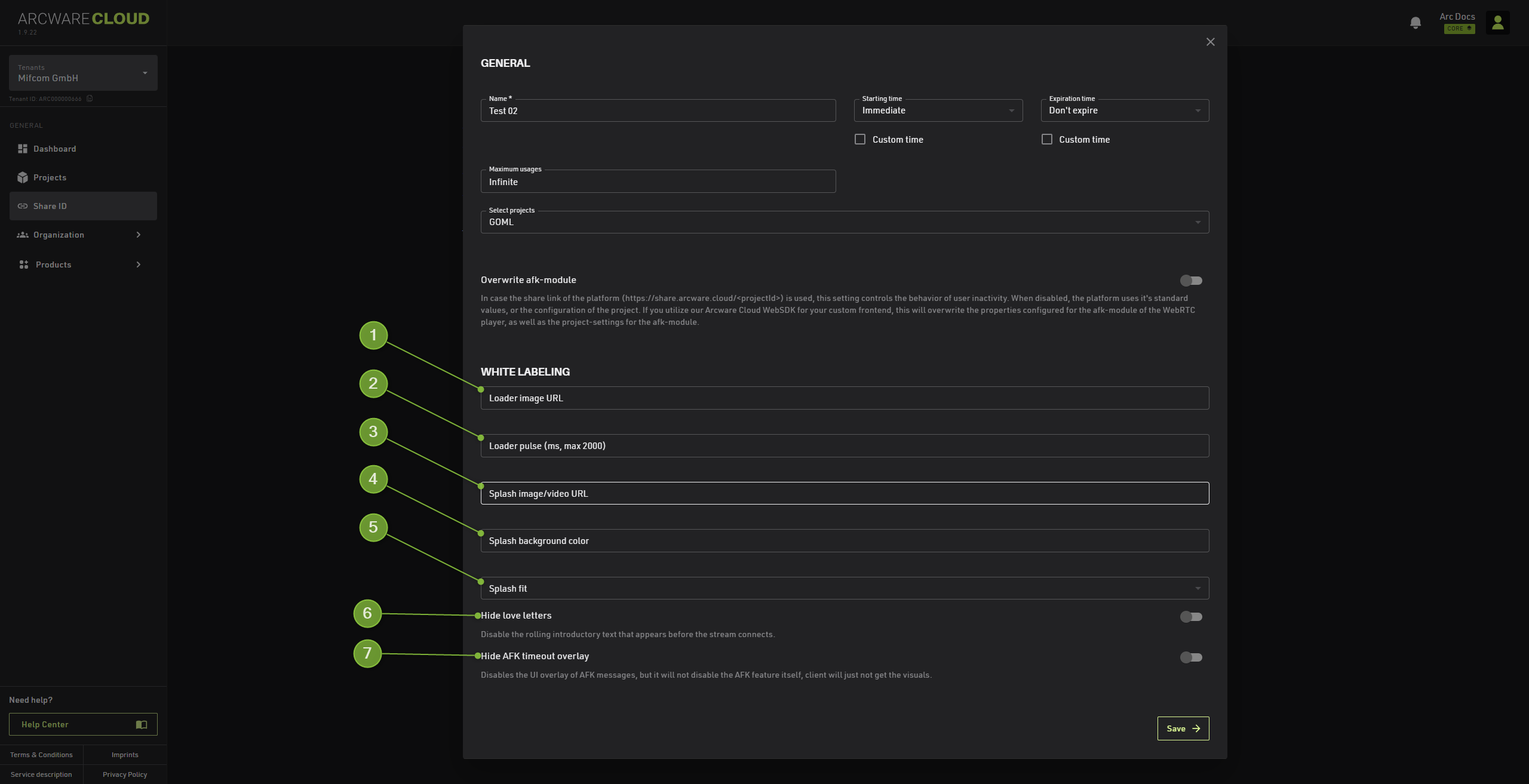
White Labeling is essential for enterprise-grade deployments where a seamless, unbranded user experience is required. Instead of a generic technical interface, users are greeted with your specific brand colors, custom animations, and clean visuals. These settings are applied globally to the specific Share ID you are configuring, making it easy to create different "branded entries" for the same project.
1. **Loader image URL:** \
Provide a web link to a custom logo or icon (PNG/SVG). This replaces the default Arcware loader icon seen during the initial connection phase.
2. **Loader pulse (ms, max 2000):** \
Controls the animation speed of the loader icon. Setting a value (e.g., `500`) makes the icon "pulse" or scale up and down. A lower value results in a faster pulse.
3. **Splash image/video URL:** \
The URL for the background content displayed while the stream is initializing. It can bean image or a video to keep users engaged before the 3D world appears.
4. **Splash background color:** \
Defines the solid background color of the splash screen. This is visible if the splash image/video is loading or doesn't cover the entire screen. Use hex codes (e.g., `#000000`).
5. **Splash fit:** \
Determines how the splash image or video scales to the browser window. Options typically include Cover (fills the screen) or Contain (shows the full image with letterboxing).
6. **Hide love letters:** \
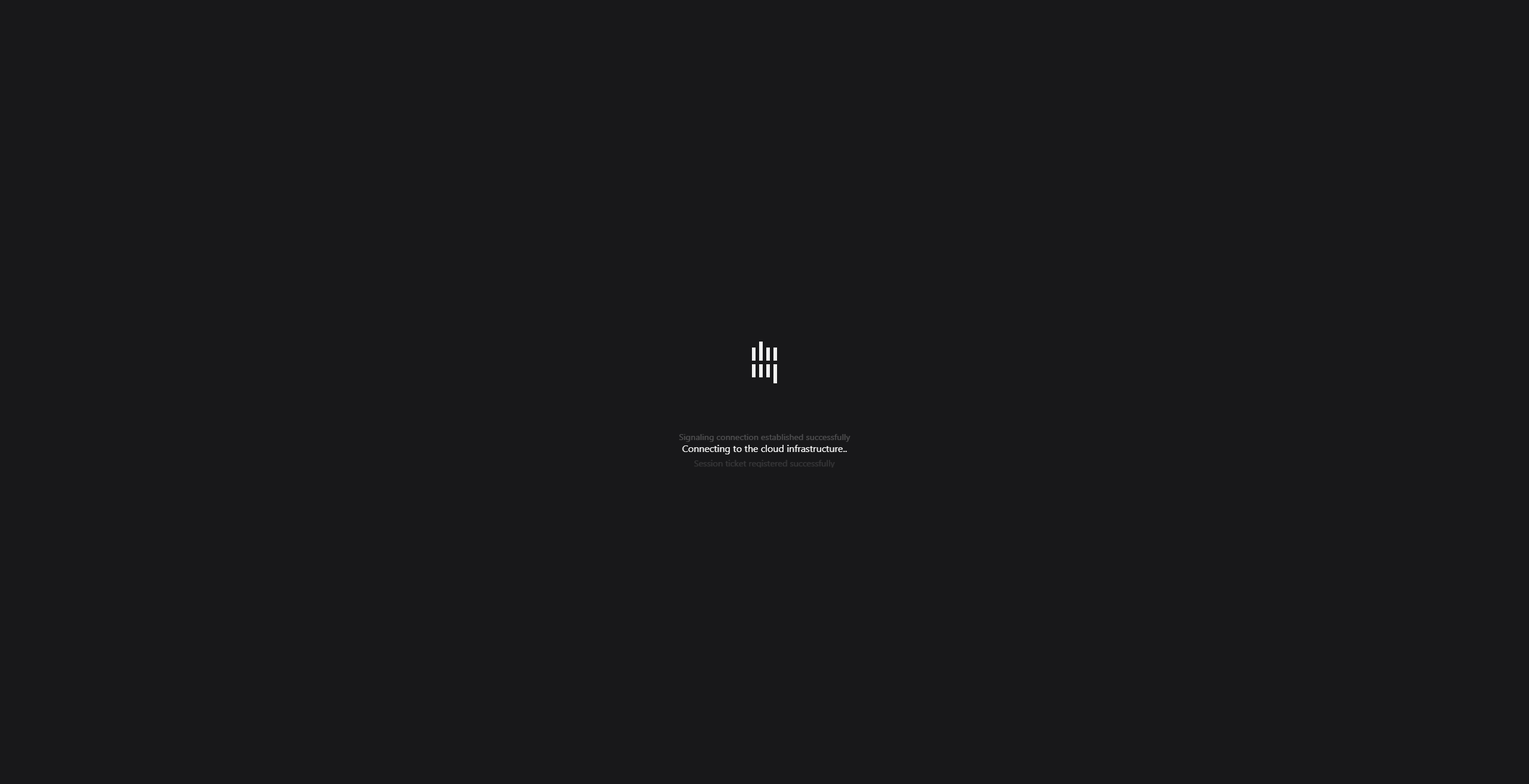
When enabled, this removes the "default Arcware loading states" (the technical status messages) that usually scrolls across the screen while the stream is connecting.
7. **Hide AFK timeout overlay:** \
Disables the visual warning overlay that appears when a user is inactive. Note: This only hides the UI, the actual AFK logic will still disconnect the user unless modified in the project settings.
### Default Arcware Branding
### White labeled (example)
---
# Agent Instructions
This documentation is published with GitBook. GitBook is the documentation platform designed so that both humans and AI agents can read, navigate, and reason over technical content effectively. Learn more at gitbook.com.
## Querying This Documentation
If you need additional information that is not directly available in this page, you can query the documentation dynamically by asking a question.
Perform an HTTP GET request on the current page URL with the `ask` query parameter, and the optional `goal` query parameter:
```
GET https://docs.arcware.cloud/arcware-cloud-platform/getting-started-with-arcware-cloud/sharing-your-project/white-labeling-guide.md?ask=&goal=
```
`ask` is the immediate question: it should be specific, self-contained, and written in natural language.
`goal` is optional and describes the broader end goal you are ultimately trying to accomplish on behalf of the user. GitBook uses it to tailor the answer towards what is most useful for that goal.
The response will contain a direct answer to the question and relevant excerpts and sources from the documentation.
Use this mechanism when the answer is not explicitly present in the current page, you need clarification or additional context, or you want to retrieve related documentation sections.