> For the complete documentation index, see [llms.txt](https://docs.arcware.cloud/llms.txt). Markdown versions of documentation pages are available by appending `.md` to page URLs; this page is available as [Markdown](https://docs.arcware.cloud/unreal-engine-setup/set-up-pixel-streaming-in-your-own-project/core-settings/mouse.md).
# Mouse
Set up Pixel Streaming in your own project - Core Settings
The mouse settings you need depend on how you intend to set up your UI, either **in-game UI** or **in-web UI**...
## UI Option 1: UI is provided in-web browser via a surrounding HTML webpage
**Step 1.** Hide in-game Mouse cursor
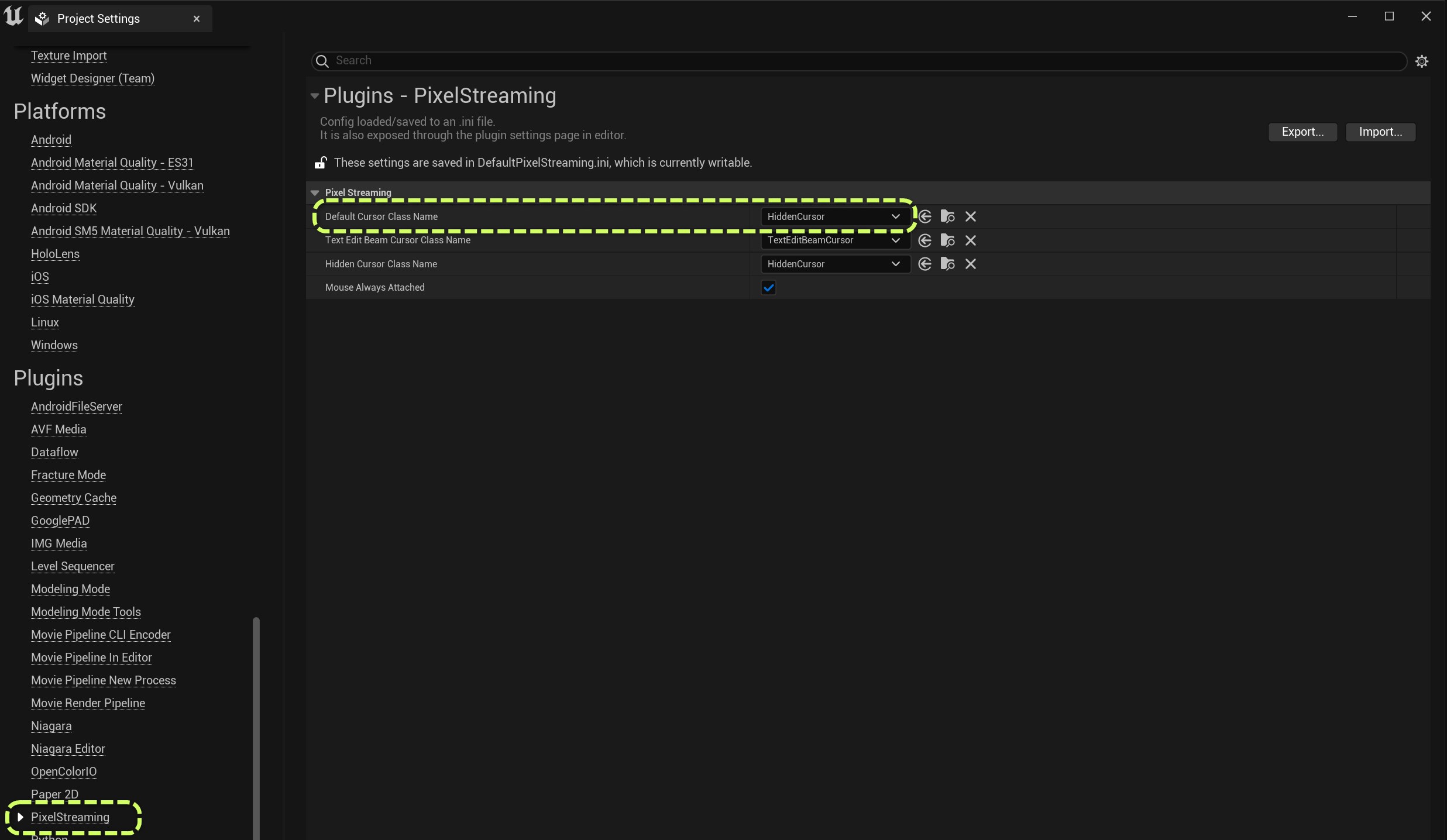
* Navigate to **Project Settings** > **Plugins** > **Pixel Streaming** and set the **'Default Cursor Class Name'** to use **'HiddenCursor'.**\
When streaming your application you may notice two mouse cursors active on the screen, that's because an additional mouse cursor is provided in-game from Unreal Application. When using UI set up in a webpage we don't need the in-game mouse cursor, so we hide it here...
Step 1.
**Step 2**. Disable Mouse Lock options in Unreal Engine
* Navigate to **Edit** > **Project Settings** > **Engine** > **Input**
* Set **'Default Viewport Mouse Capture Mode'** = **'Capture Permanently Including Initial Mouse Down'**\
In most projects this value is sufficient. It means that the game window will always react to mouse input, even the first click in the window.
* Set **'Default Viewport Mouse Lock Mode'** = **'Do Not Lock'**\
Setting this as **'Do Not Lock'** means the user can freely click the surrounding HTML buttons without having to always press **'Escape'** first to unlock the mouse cursor from the stream window.\
\
(Please be aware this setting is overridden by the '**Mouse Lock**' option in Arcware Cloud project settings. Despite it being overridden, we still recommend to set this value in Unreal Engine as well, in case you test the project locally without Arcware Cloud settings)
Step 2.
**Step 3**. Disable Mouse Lock option in Arcware Cloud platform
* Inside your project page in Arcware Cloud navigate to **Settings** > **General** >
* Set **Mouse Lock** to **Disabled**\
Setting this as **'Disabled'** means the user can freely click the surrounding HTML buttons without having to always press **'Escape'** first to unlock the mouse cursor from the stream window. Disabling it also means the mouse cursor provided by the web browser will be visible.\
\
(Please be aware, this setting overrides the '**Default Viewport Mouse Lock Mode'** value set in Unreal Engine)
Step 3.
***
## UI Option 2: UI is provided in-game via Unreal Engine
**Step 1.** Show in-game Mouse cursor (only relevant if 'Mouse Lock' is enabled in Arcware Cloud)
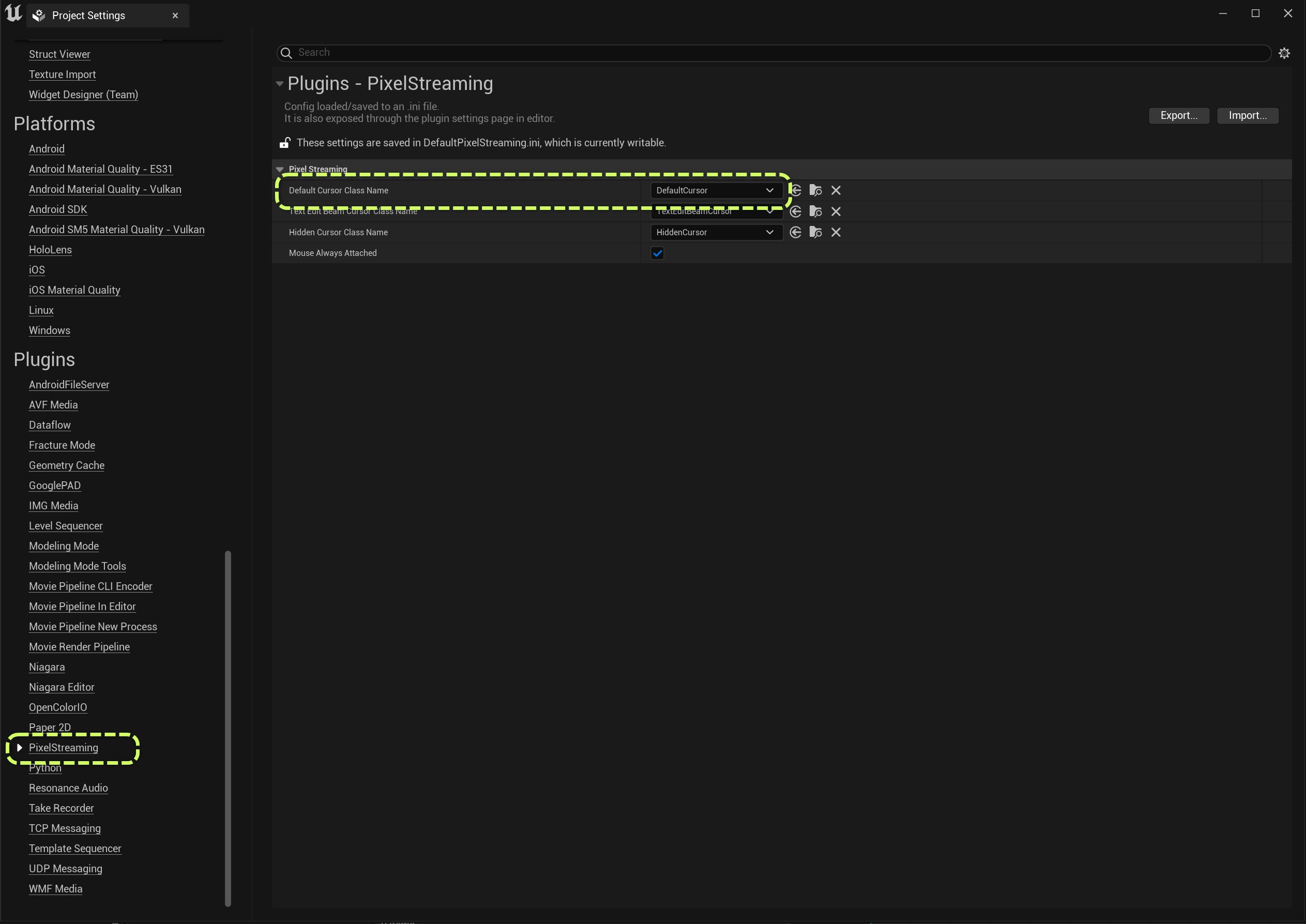
* Navigate to **Project Settings** > **Plugins** > **Pixel Streaming** and set the **'Default Cursor Class Name'** to use **'DefaultCursor'.**\
If you have enabled the '**Mouse Lock**' feature from inside Arcware Cloud, you will notice that it automatically hides the mouse cursor provided by the web browser. So in order to interact with your in-game Ul you will need to make sure that the in-game mouse cursor is visible instead.
Step 1.
**Step 2**. Enable Mouse Lock options in Unreal Engine
* Navigate to **Edit** > **Project Settings** > **Engine** > **Input**
* Set **'Default Viewport Mouse Capture Mode'** = **'Capture Permanently Including Initial Mouse Down'**\
In most projects this value is sufficient. It means that the game window will always react to mouse input, even the first click in the window.
* Set **'Default Viewport Mouse Lock Mode'** = ''**Lock On Capture''** / **''Lock Always''** / **''Lock in Fullscreen''**\
Using one of these mouse 'Lock' options, you could for example lock the player camera rotation to the mouse, so the camera follows the mouse regardless of whether the user is clicking down or not (such as in first person games). \
\
(Please be aware this setting is overridden by the '**Mouse Lock**' option in Arcware Cloud project settings. We still recommend to set this value in Unreal Engine as well, in case you test the project locally without Arcware Cloud settings)
Step 2.
**Step 3**. Enable Mouse Lock option in Arcware Cloud platform
* Inside your project page in Arcware Cloud navigate to **Settings** > **General** > **Mouse Lock**
* Set **Mouse Lock** to **Enabled**\
Setting this as **'Enabled'** means your mouse will be locked inside the stream window and the mouse cursor provided by the web browser will be hidden (leaving only the in-game mouse visible, \*if it's visible\*). This can be useful for 1st person experiences where the camera should be locked to the mouse position regardless of whether the user is clicking down or not. With this enabled you will now have to press **Escape** to unlock the mouse from the stream window.\
\
(Please be aware, this setting overrides the '**Default Viewport Mouse Lock Mode'** value set in Unreal Engine)
Step 3.
\
**Step 4**. Activate the mouse only when in-game UI Menu is open (Optional) \
\
In projects using in-game UI, you maybe only want to activate the in-game mouse cursor when the UI menu is open.
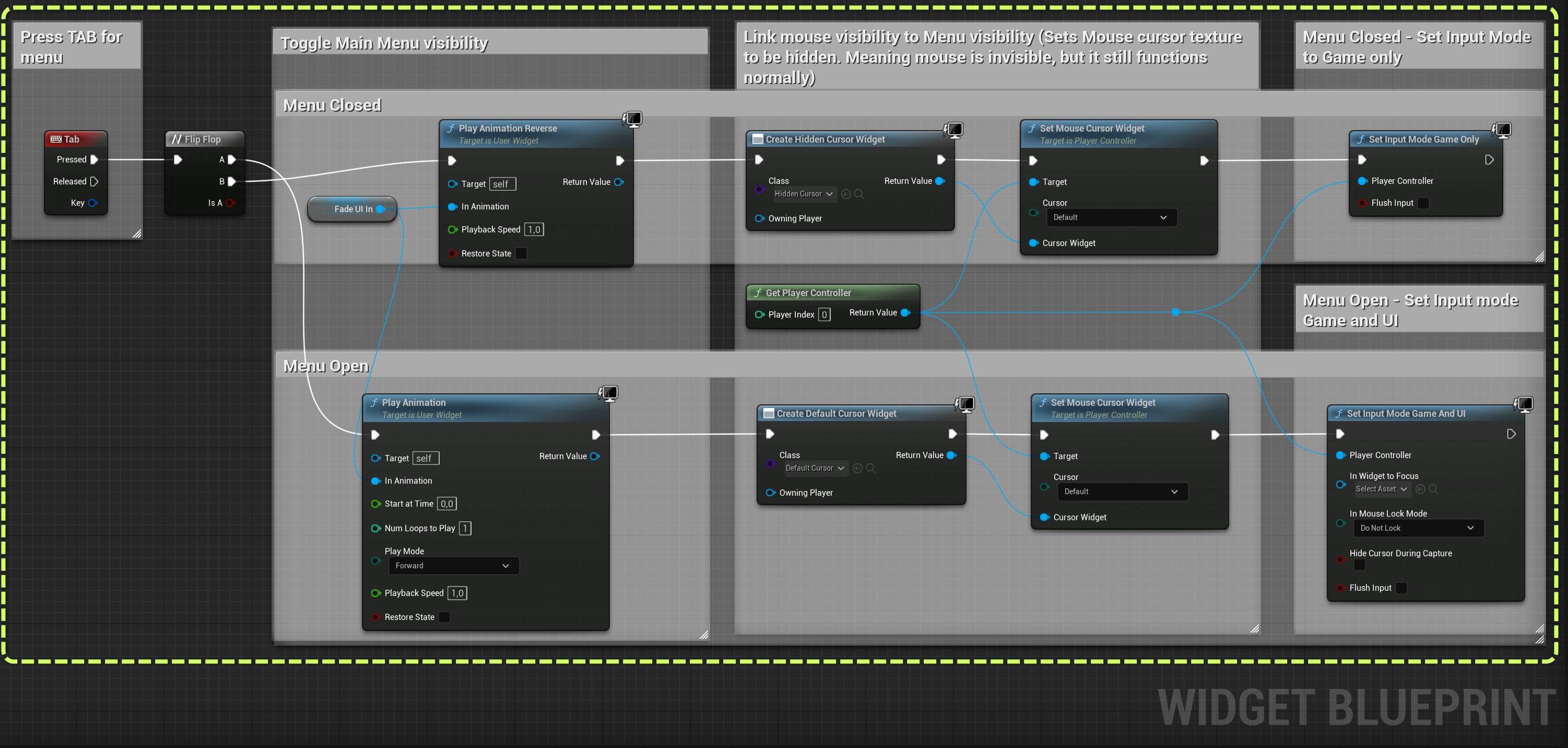
* Toggle the in-game mouse visibility at runtime: You can set the same values as seen in Step 1. ('**HiddenCursor**' / '**Default Cursor**') via the blueprint nodes below.

* Toggle the in-game mouse input at runtime: You can decide if mouse clicks go to your game or to your UI, via the '**Set Input Mode Game Only**' and '**Set Input Mode Game and UI**' blueprint nodes. \
\
To form the base of your menu open/close logic, you would combine the Mouse visibility and the Mouse Input nodes, to only allow mouse usage when the menu is open. Which would look like this...
Step 4. (Created Inside Widget blueprint)
***
{% hint style="info" %}
Note: The two mouse configurations listed above for **in-Web UI** / **in-game UI** are fitting the common use cases on Arcware Cloud, however they are only recommendations and the settings can of course be combined in any way to suit your project needs.
{% endhint %}
{% hint style="info" %}
Note: In **Edit** > **Project Settings** > **Pixel Streaming** you have maybe noticed the setting below called **'Mouse always attached'** (See Screenshot below). This is an additional method to hide the mouse cursor, but It is not recommended to use it, as from our own experience disabling it stops the user from being able to perform double clicks during \
streaming.\
\

{% endhint %}
---
# Agent Instructions
This documentation is published with GitBook. GitBook is the documentation platform designed so that both humans and AI agents can read, navigate, and reason over technical content effectively. Learn more at gitbook.com.
## Querying This Documentation
If you need additional information that is not directly available in this page, you can query the documentation by asking a question.
Perform an HTTP GET request on the following URL with the `ask` and `goal` query parameters:
```
GET https://docs.arcware.cloud/unreal-engine-setup/set-up-pixel-streaming-in-your-own-project/core-settings/mouse.md?ask=&goal=
```
`ask` is the immediate question: it should be specific, self-contained, and written in natural language.
`goal` is what the user is ultimately trying to achieve, the reason they need the answer. Sharing it helps GitBook give you a better, more relevant answer. A goal is most helpful when it describes the outcome the user wants rather than restating the question. For example, with `ask=how do I create an API token`, a goal like `automate deployments from our CI pipeline` lets GitBook tailor the answer to that use case.
The response will contain a direct answer to the question and relevant excerpts and sources from the documentation.
Use this mechanism when the answer is not explicitly present in the current page, you need clarification or additional context, or you want to retrieve related documentation sections.